Shop Floor Time Tracking Made Simple: Introducing Kiosk Mode
Not every worker carries a phone on the job. In manufacturing plants, food processing facilities, and warehouses, employees often work in shared spaces where personal devices aren't practical—or allowed.
That's why we built Kiosk Mode into Bizy Clock.
Turn any tablet or PC into a shared time clock that's secure, simple, and ready for your shop floor.
The Challenge: Track Time Without phones
Traditional time tracking assumes everyone has a smartphone. But in reality:
- Factory workers leave phones in lockers
- Food processing plants prohibit personal devices
- Shared workstations mean no assigned devices
- Some employees simply prefer not to use their own phone for work
Before Kiosk Mode, businesses had two bad options:
- Paper timesheets (error-prone, administrative nightmare)
- Dedicated hardware clocks (expensive, inflexible, one location only)
Bizy Clock's Kiosk Mode gives you a third option: any device becomes a smart time clock.
How It Works
Step 1: Set Up Your Kiosk Device
Mount a tablet or small PC in a convenient location—near the time clock entrance, break room, or production floor. Log into Bizy Clock and enable Kiosk Mode.
Recommended hardware:
- iPad or Android tablet ($200-400)
- Old PC or laptop with a touchscreen ($0 if you have one lying around)
- Raspberry Pi with a display ($100-150)
The device stays plugged in and always shows the Kiosk screen when idle.
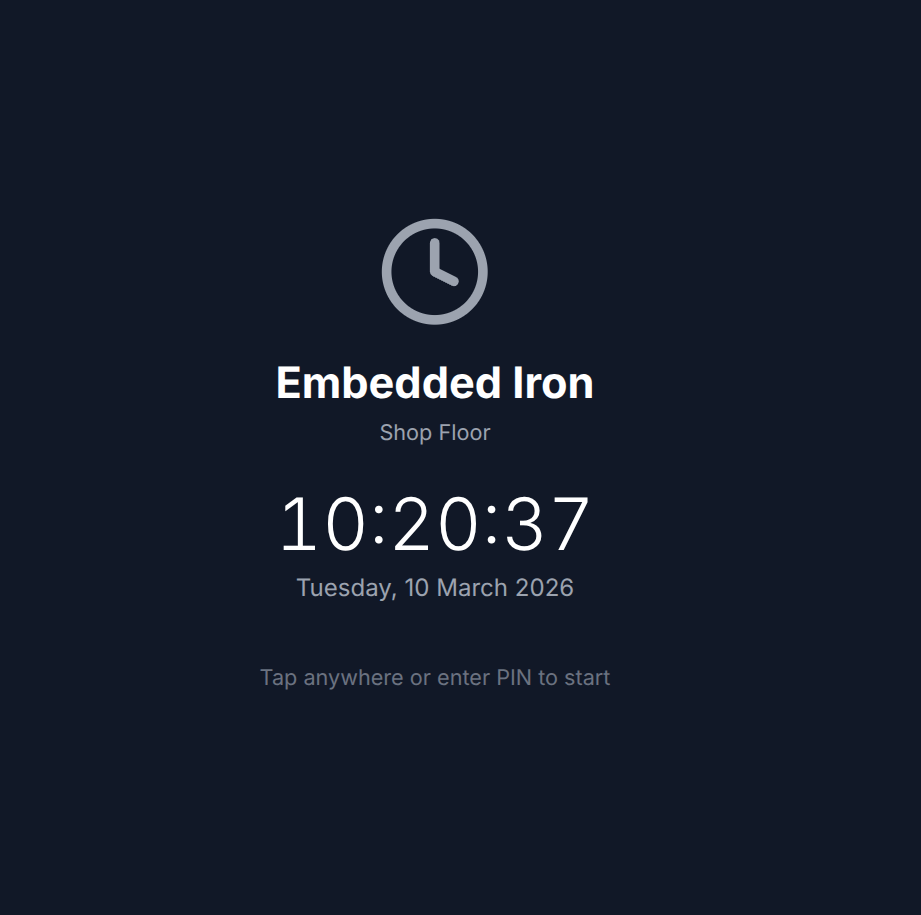
The Kiosk idle screen shows the time, date, and prompts workers to tap or enter their PIN.
Step 2: Workers Clock In with a PIN
Each employee gets a unique 4-digit PIN. When they arrive:
- Tap the screen (or press any key)
- Enter their PIN
- Select their job from the assigned jobs list
- Clock in — done!
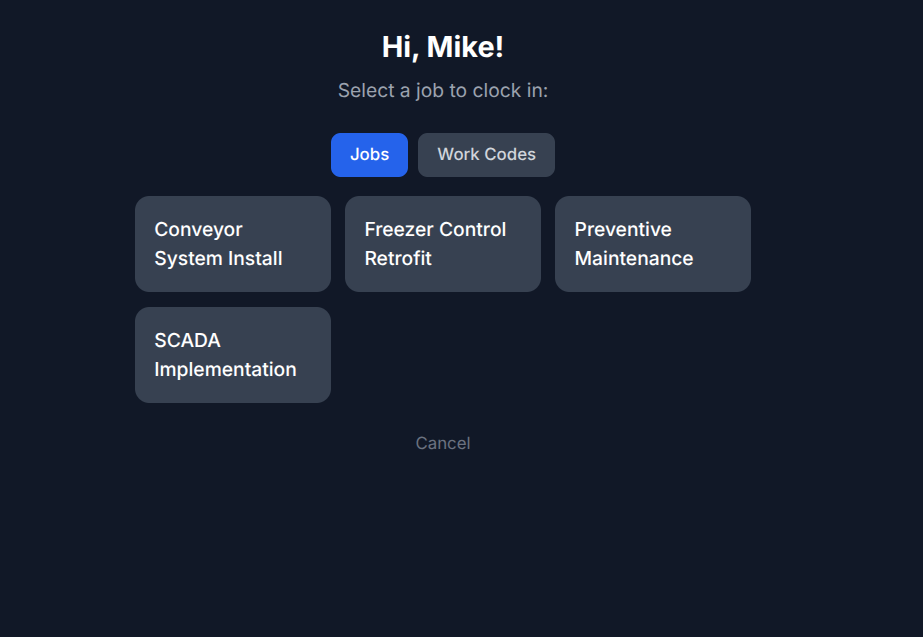
After entering their PIN, workers see only the jobs they're assigned to—no confusion, no mistakes.
Step 3: Assignment-Based Job Selection
Here's where it gets smart: workers only see jobs they're assigned to.
If Mike is working on the Conveyor System Install and Freezer Control Retrofit projects, those are the only options he sees. He can't accidentally clock into the wrong job, and supervisors don't need to audit mismatched time entries later.
Assignments are managed in the admin dashboard:
- Assign employees to specific jobs before shifts start
- Update assignments in real-time if priorities change
- Employees see updated job lists immediately
Why Kiosk Mode Works
✅ No Hardware Investment
Use devices you already own. That old iPad in the office drawer? Perfect. The replacement PC you upgraded last year? Done. No need to buy expensive dedicated time clocks.
✅ Foolproof Interface
Big buttons, clear text, minimal steps. Workers don't need training—they tap, type their PIN, pick a job, and go.
✅ Prevents Buddy Punching
PINs are private. Unlike sign-in sheets where anyone can write anything, each PIN is tied to one employee.
✅ Real-Time Visibility
As soon as someone clocks in, you see it in the dashboard. No waiting for paper timesheets to be submitted at the end of the week. Supervisors know who's on the floor, on which job, right now.
✅ Accurate Job Costing
When workers pick their specific job at clock-in, you know exactly how much time each project consumes. No guesswork, no estimates, no "I think I spent half the day on X" conversations.
Who Uses Kiosk Mode?
We've seen great adoption across industries:
- Manufacturing shops — Assembly lines where workers rotate between stations
- Food processing plants — Hygiene rules prohibit personal devices
- Warehouses — Forklift operators and packers share workspaces
- Construction trailers — Site offices with shared computers
- Cleaning services — Central check-in point before crews disperse
Setup Takes Minutes
From the Bizy Clock admin dashboard:
- Go to Settings → Kiosk Devices
- Click Add Kiosk Device
- Give it a name ("Front Entrance", "Break Room Tablet", etc.)
- Select which jobs this kiosk can access (optional)
- Print the auto-generated QR code (optional—for quick login)
- Mount your device and keep it logged in
That's it. The kiosk polls for updates every 30 seconds, so job assignment changes appear almost instantly.
The Bottom Line
Kiosk Mode solves a real problem: how do you track time accurately when workers don't have personal devices?
The answer isn't expensive hardware or error-prone paper—it's software that adapts to your environment.
Whether you're running a factory floor, a food processing line, or a warehouse operation, Bizy Clock's Kiosk Mode gives you accurate, real-time time tracking without breaking the bank.
Try It Today
Already a Bizy Clock user? Enable Kiosk Mode in your settings—no extra cost.
New to Bizy Clock? Start your free trial and set up your first kiosk in under 10 minutes.